Help for parents & students
Everything you need to book, change, or check in for a school photo session.
Getting started
Your school shares a booking link (or a QR code on a flyer) for photo day. Opening it shows the schedule: every available time, split by photographer station.
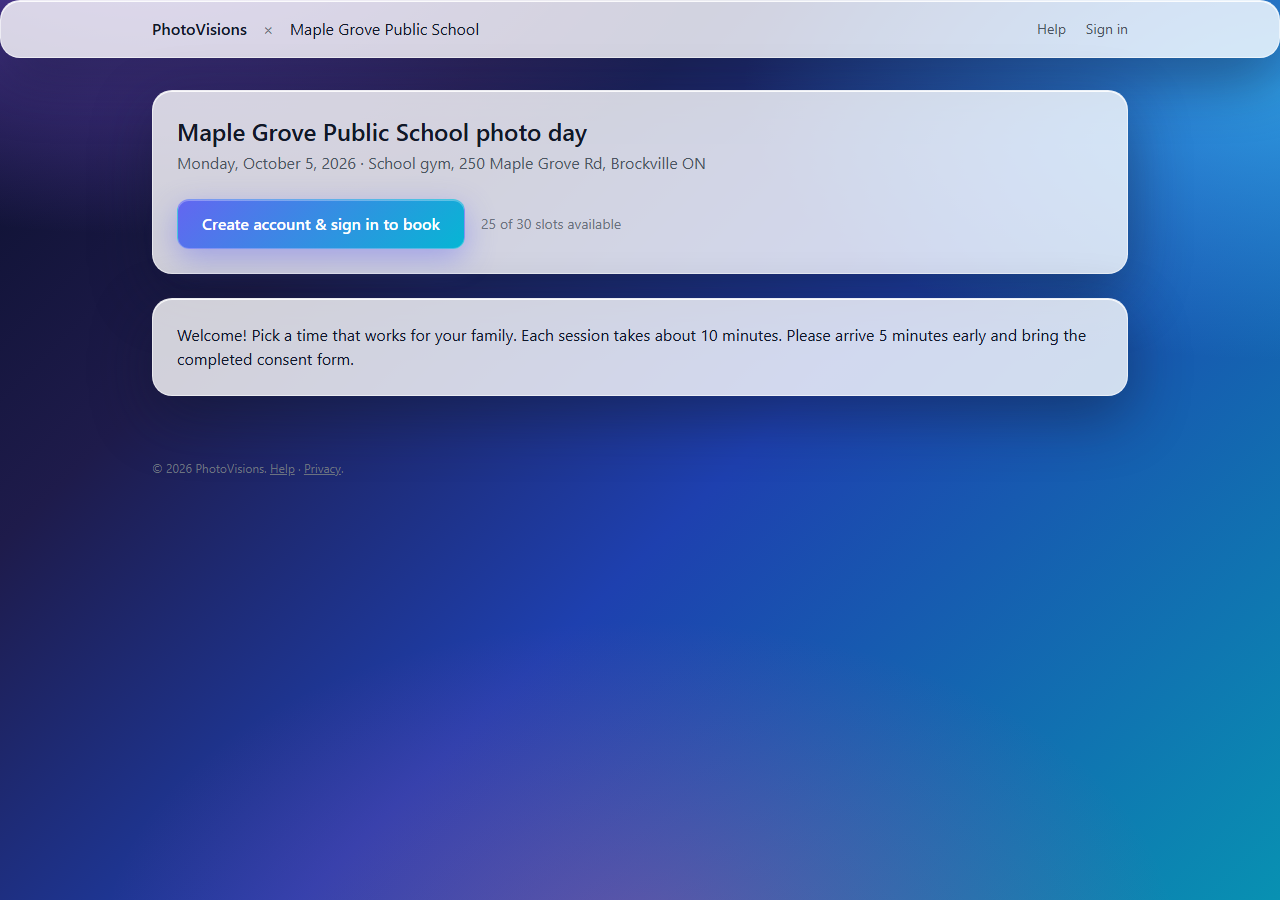
- Open the link your school sent.
- Click Create account & sign in to book. You only need to do this once.
- Enter your name, email, a password, and (optionally) a mobile number if you'd like text reminders.
- You're signed in automatically and brought straight back to the schedule.
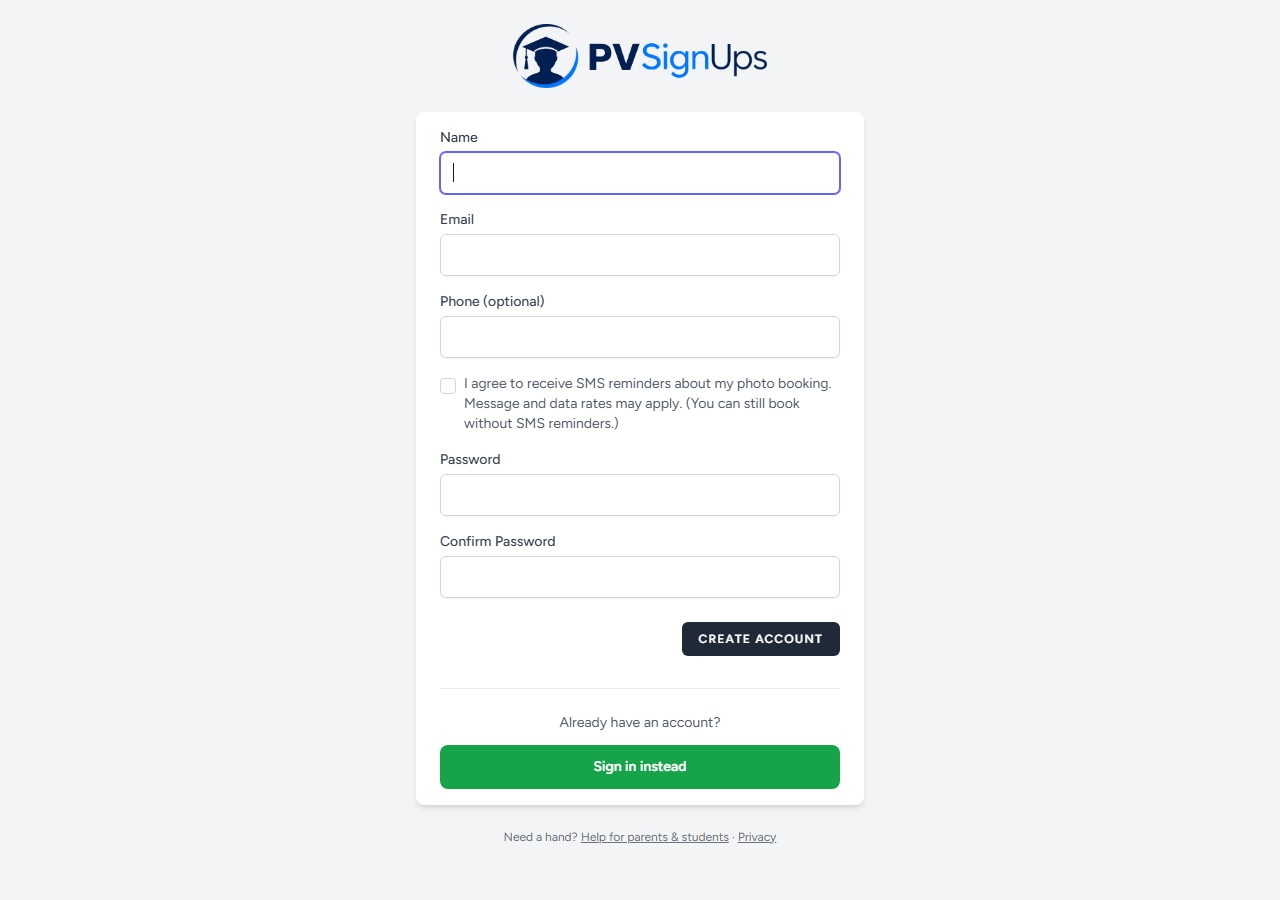
Already have an account from a previous photo day? Click Sign in instead and use the same email and password.
Two or more children at the same school? Each account holds one booking per photo day, so create a separate account (with a different email address) for each child. One account can still be used across different schools or years.
Booking a time
Once you're signed in, the schedule appears below the event details.
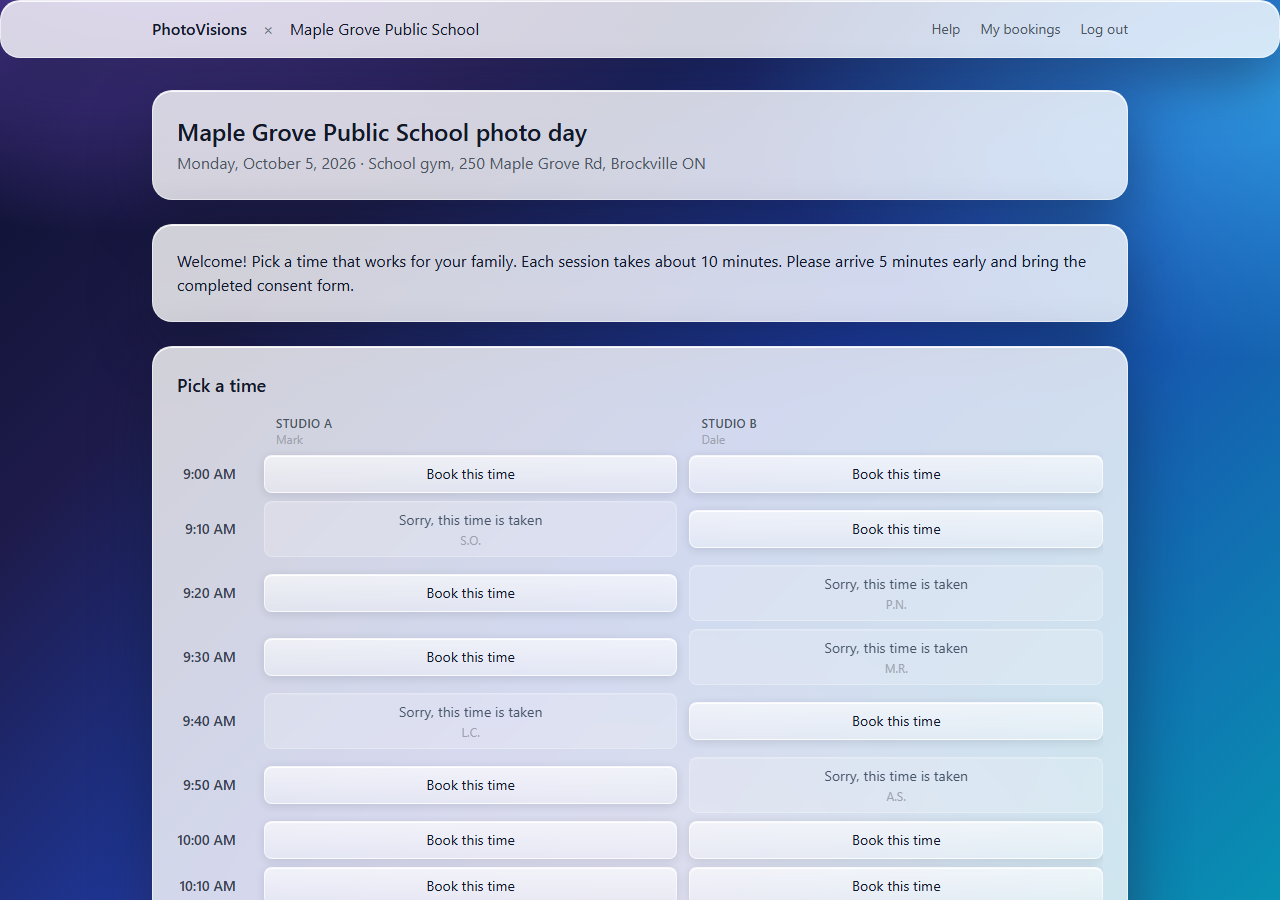
- On the schedule, click any available time. Each column is a separate photographer station, so the same time may appear more than once — pick any of them.
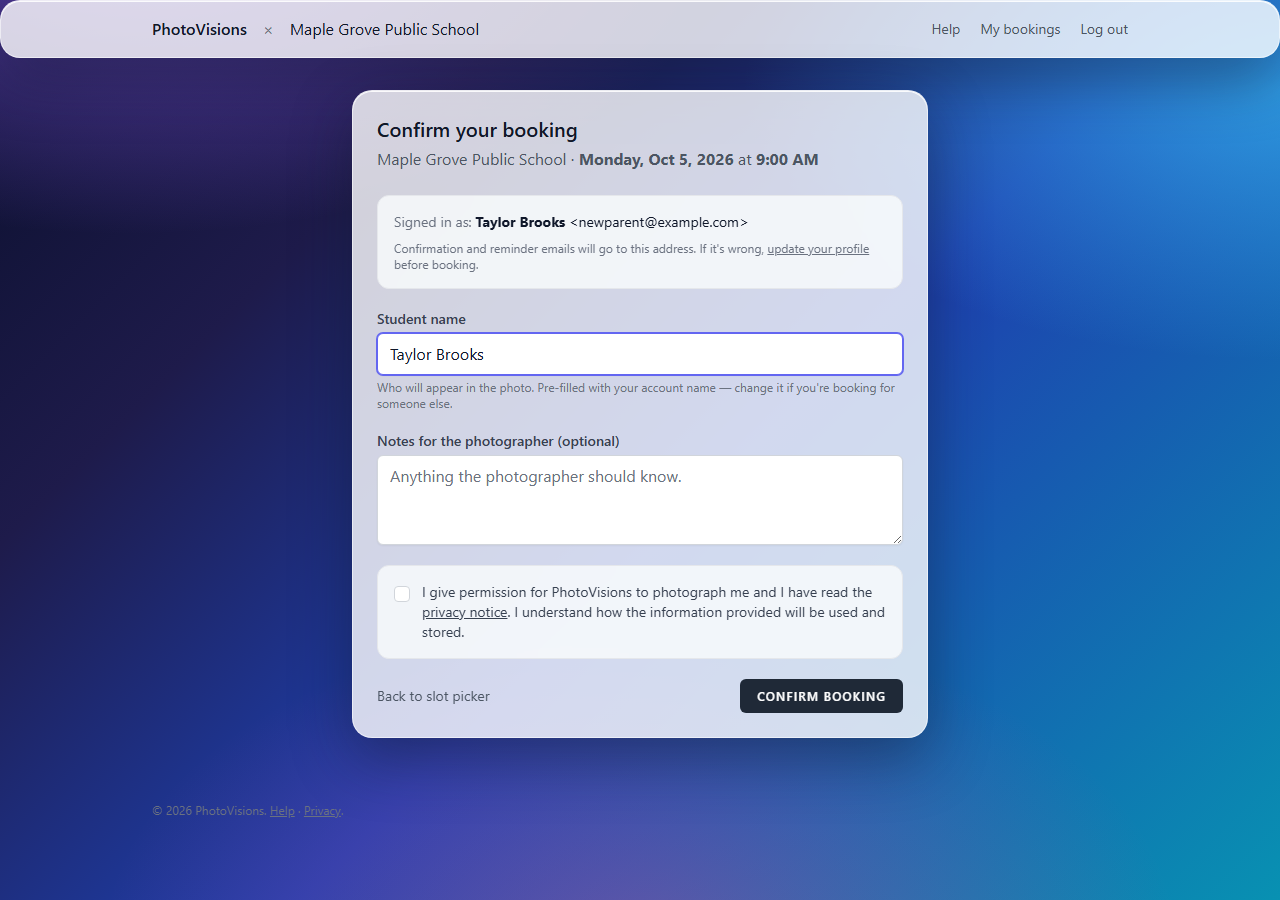
- Enter the student's name exactly as it should appear on the photo order. It's pre-filled with your account name, so change it if you're booking for your child.
- Add optional notes for the photographer (glasses, siblings, accessibility needs).
- Tick the photo consent box and click Confirm booking.
If someone grabs the same time a moment before you, you'll be sent back to the schedule with a note — just pick another slot.
Why do only some times show?
Schools sometimes release the schedule in batches so early bookers don't take every morning slot. If the time you want isn't visible yet, check back in a day or two — more times open automatically as the current batch fills up.
Your confirmation & QR code
As soon as you book you'll see a confirmation page, and the same details are emailed to you. Both include a QR code — that's your ticket on photo day.
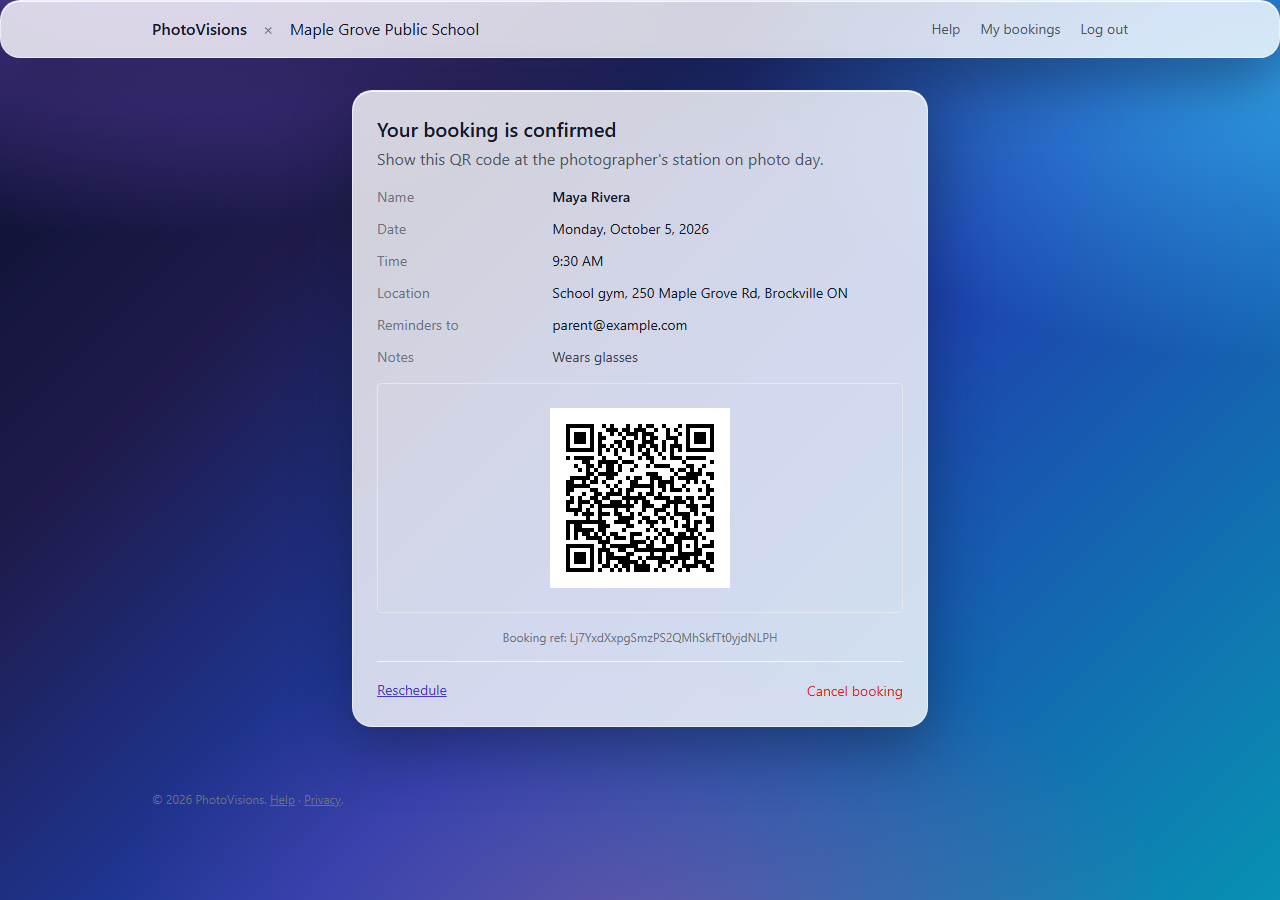
- The email comes from mark@photovisions.ca. If you don't see it within a few minutes, check your spam or promotions folder.
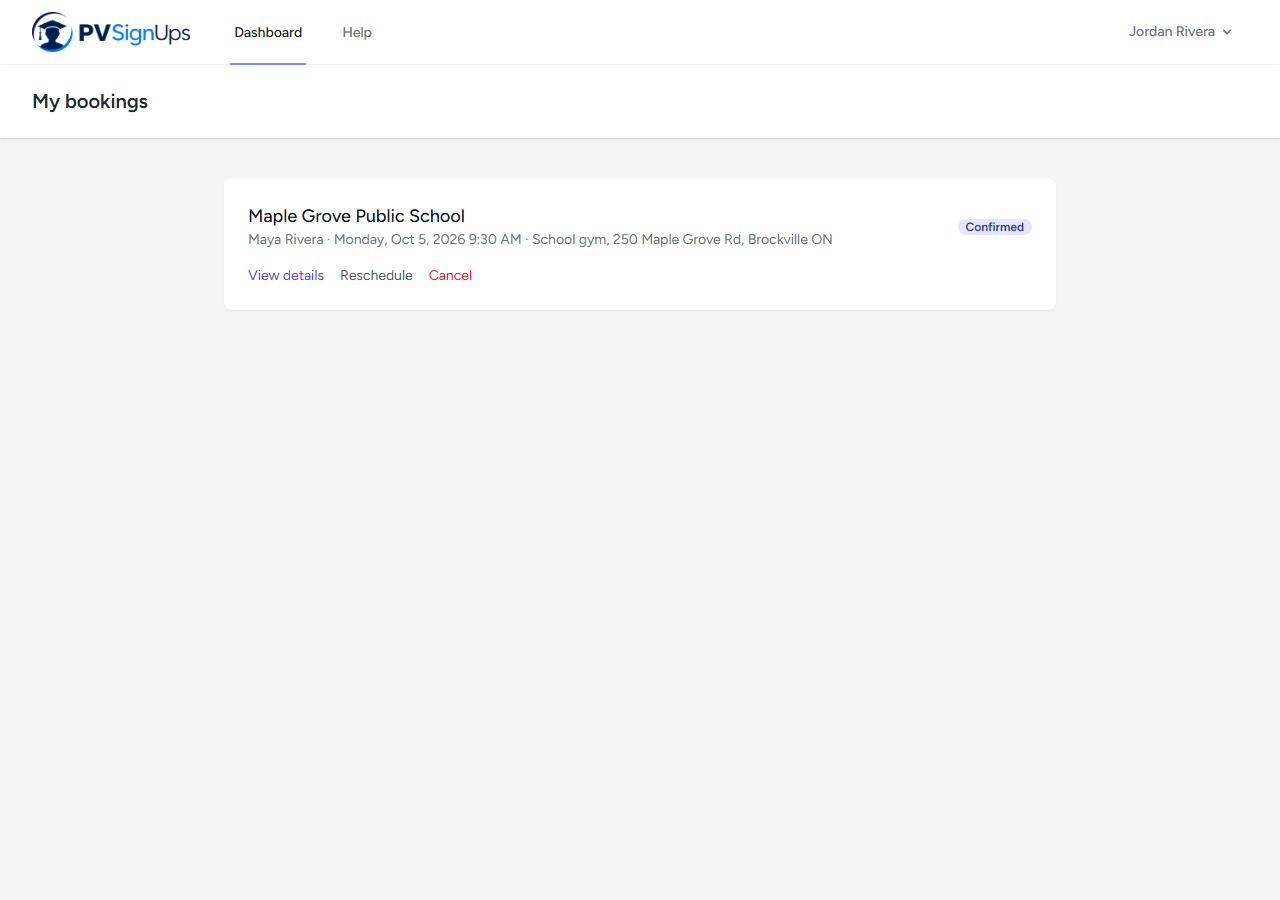
- You can always get back to your QR code by signing in and opening My bookings.
- No printer needed: showing the QR code on your phone works fine.
Changing or cancelling a booking
Sign in and open My bookings (the link is at the top of every page once you're signed in).
Reschedule
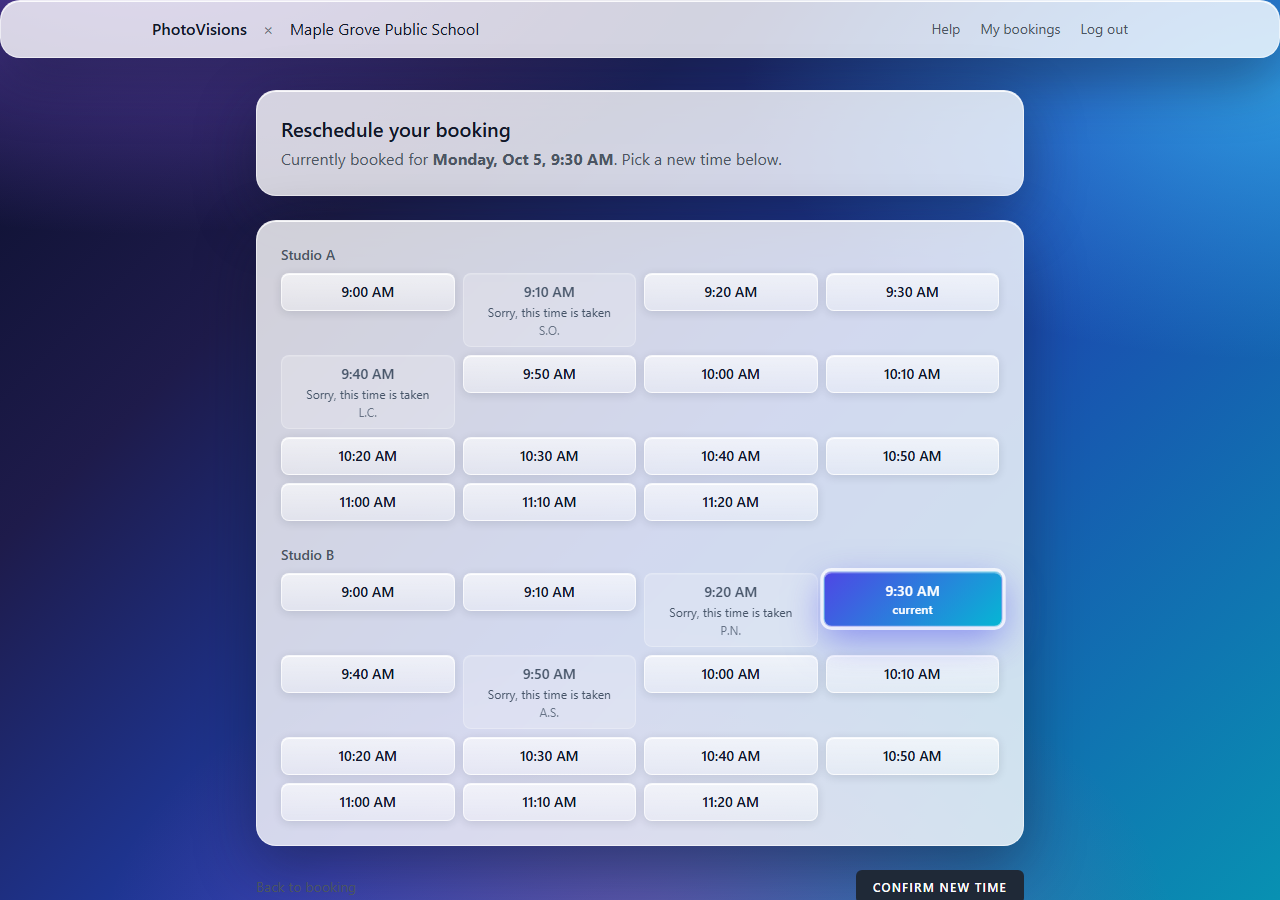
- Click Reschedule next to the booking.
- Pick a new available time from the schedule.
- Your old slot is released for another family and a fresh confirmation email is sent.
Cancel
Click Cancel and confirm. The time goes back into the pool right away. You can book a new time afterwards if plans change again.
Once photo day has started, changes are locked — talk to the photographer or the school office instead.
Reminders
We send reminder emails before your session — typically 3 days, 1 day, and 1 hour before, though each school can adjust this.
If you entered a mobile number and ticked text reminders when you registered, you'll get the same reminders by SMS. Text messages come from a Canadian number and only ever contain your booking details — never links to pay or log in.
To stop text reminders, sign in, open Profile from the menu under your name, and clear the phone number or untick SMS consent.
On photo day
- Arrive about 5 minutes early at the location shown on your confirmation.
- Have your QR code ready — on your phone or printed from the email.
- The photographer scans it (or looks you up by name) and checks you in.
- Sessions run roughly on time. If you're running late, come anyway — staff will fit you into the next open gap.
Bring anything the school asked for (consent forms, order envelopes) plus whatever makes your child comfortable: a comb, a favourite sweater, glasses if they normally wear them.
Your information
We only collect what's needed to run the photo day: your name and contact details, the student's name, your booking time, any notes you add, and whether the photo consent box was ticked. Nothing is sold or shared outside PhotoVisions and your school.
The full details are in the privacy notice.
To update your name, email, phone number, or password, sign in and open Profile from the menu under your name. You can also delete your account from that page.
Troubleshooting
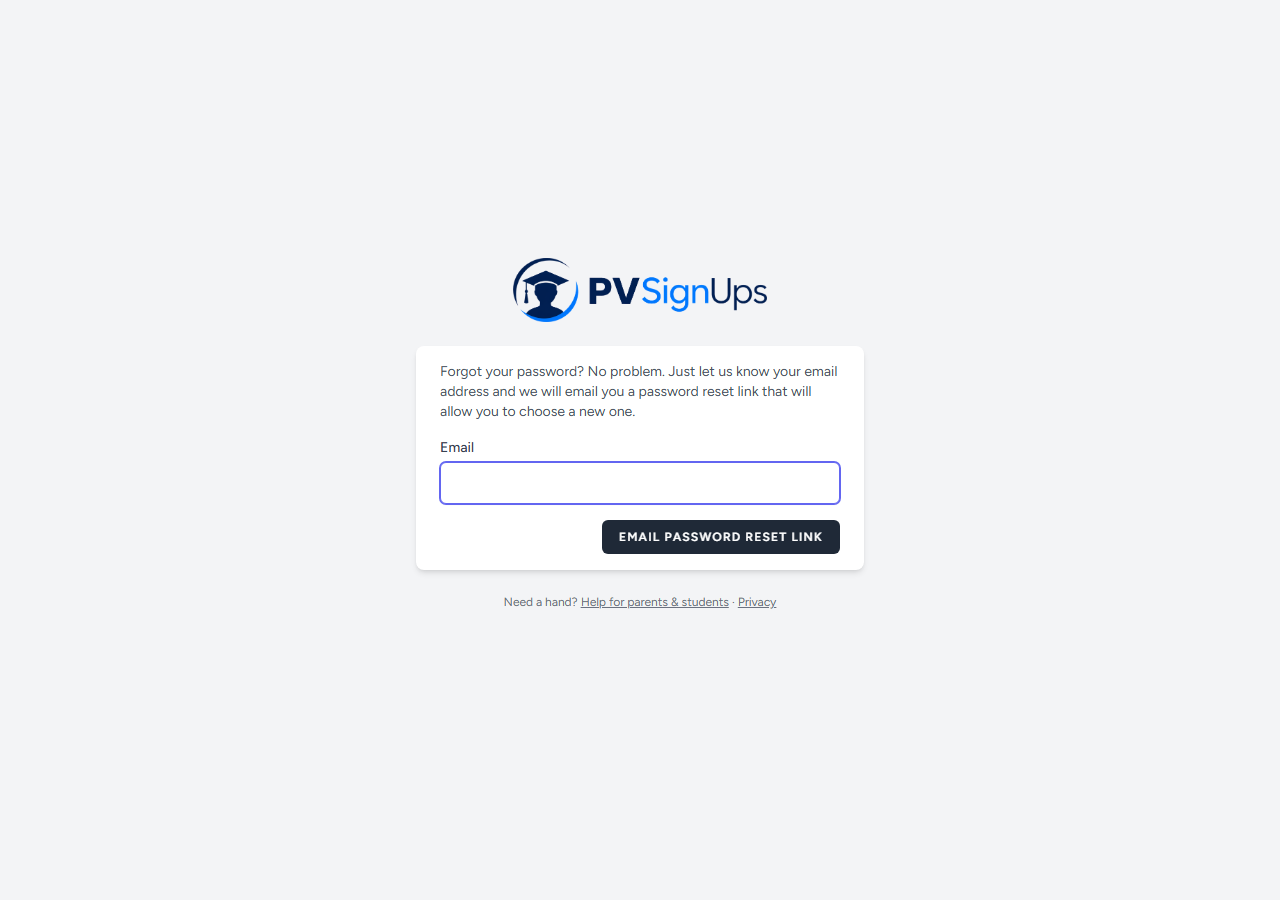
I forgot my password
On the sign-in page click Forgot your password?, enter your email, and follow the link we send. The link works for 60 minutes.
I didn't get the confirmation email
- Check spam, junk, or promotions folders for a message from mark@photovisions.ca.
- Sign in and open My bookings — if the booking is listed there, it went through. Your QR code is on the details page.
- Still nothing? Open Profile and make sure your email address is spelled correctly.
"You already have a booking for this event"
Each account can hold one active booking per school event. To move to a different time use Reschedule rather than booking again. To book a second child at the same school, sign out and create another account with a different email address.
The time I wanted is gone
Slots are first-come, first-served. The schedule is live, so refresh the page to see what's currently open. More times may be released as the schedule fills.
The booking link says the event isn't open
The school hasn't opened booking yet, or it has closed. Check the date on the school's notice or contact the school office.
Something else
Contact the school office, or email mark@photovisions.ca with the school name and the student's name.